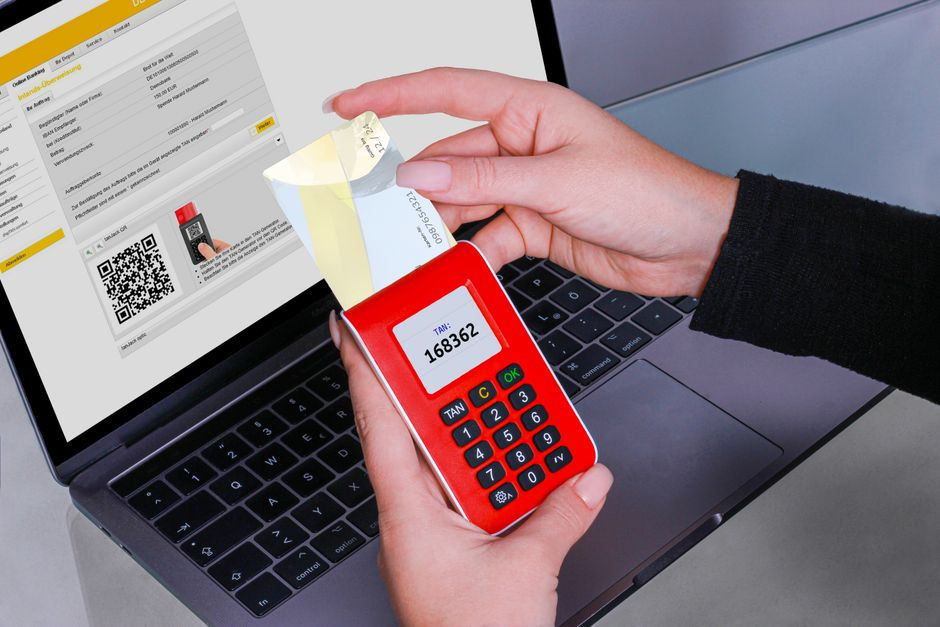
Digital Wallet App with Two Factor Authentication: Complete Guide
- Overrank Support
- 2 days ago
- 7 min read
A digital wallet app with two factor authentication is basically your money's bodyguard. It adds a second security layer beyond your password, so even if someone steals your login credentials, they still can't access your funds without a second verification step. This second factor is something only you have, like your phone or a security key.
In this article
What Exactly Is Two-Factor Authentication (2FA)?
Two-factor authentication (also called two-step verification) requires two different types of proof before you can access your account. Think of it like entering a building: first you show your ID at the desk, then you swipe your key card at the door. Both steps are required.
The two factors break down like this:
Knowledge factor: Something you know, like your password or PIN
Possession factor: Something you have, like your phone, security token, or smart card
When you try to log in, you enter your password first. Then your wallet app sends a code to your phone (usually via text, an authenticator app, or push notification). You enter that code to complete login. Without that second code, nobody gets in, even if they have your password.
Why Your Digital Wallet Needs 2FA Right Now
Passwords get stolen all the time. Data breaches happen constantly. But 2FA stops hackers cold because they'd need access to your actual phone or security device.
Here's what protects you: attackers typically steal passwords from massive databases or through phishing scams. But your phone? That's in your pocket. They can't get to it without physically robbing you.
This matters even more in 2026. The EU is rolling out mandatory digital wallet regulations starting May 26, and many experts expect 2FA to become legally required for financial apps. Getting ahead of that now is smart.
When you're evaluating any wallet app, including options like Helloairi, verify that 2FA is built in and easy to enable. It shouldn't be buried in settings or optional. It should be standard.
Best 2FA Apps and Tools for Your Digital Wallet
Most major digital wallets let you choose your 2FA method. Here are the tools that actually work:
Google Authenticator: The most popular choice. Free, simple, generates time-based codes on your phone. Works with almost every wallet app. Download it, scan a QR code during setup, and you're done.
Authy by Twilio: Rated as the top 2FA solution after independent testing of 13 different apps. Offers cloud backup so you don't lose your codes if your phone breaks. Slightly more features than Google Authenticator but equally reliable.
SMS/Text message codes: Your wallet sends a code to your phone via text. Easiest to use but slightly less secure than authenticator apps (since texts can be intercepted). Still better than nothing.
Hardware security keys: Physical USB devices (like Yubikey). Most secure option but overkill for casual users. Best for people managing large amounts of money.
Push notifications: Your wallet app simply sends you a notification saying "Login attempt?" and you tap "approve." Zero codes to remember. Available through apps like Helloairi for maximum convenience and security.
Honest recommendation: Start with Google Authenticator or Authy. Both are free, available on iOS and Android, and work with virtually every digital wallet. They're the goldilocks option: secure enough for personal accounts, simple enough that you'll actually use them.
How to Enable 2FA on Your Digital Wallet
The process is almost identical across apps. Here's the basic flow:
Step 1: Open your wallet app and go to Settings (usually a gear icon)
Step 2: Look for "Security" or "Two-Factor Authentication"
Step 3: Choose your 2FA method (authenticator app, text, hardware key, or push notification)
Step 4: Follow the setup wizard. If using an authenticator app, it'll show you a QR code. Scan it with Google Authenticator or Authy
Step 5: Enter the code generated by your authenticator app to confirm it's working
Step 6: Save backup codes somewhere safe (usually a physical notebook or password manager, never in your email)
The entire process takes about 3 minutes. Worth every second.
Essential 2FA Best Practices for Your Money
Enabling 2FA is step one. But here's what actually stops sophisticated attackers:
Use a unique password: Make your wallet password completely different from every other password you use. If one account gets breached, attackers won't have your wallet password. Use a password manager like Bitwarden or 1Password to generate and store them.
Secure your associated email: Your wallet is only as safe as the email account attached to it. Enable 2FA on that email too. This is critical.
Review trusted devices regularly: Most wallets let you see devices you've logged in from. Check this list monthly. Remove anything you don't recognize or no longer use. Old devices are security gaps.
Never use public WiFi: Don't access your wallet on coffee shop WiFi or airport networks. Public networks are easy for hackers to intercept. Wait until you're home or on mobile data.
Keep your backup codes safe: When you enable 2FA, the app gives you 10 backup codes. Screenshot them, write them down on paper, or store them in a password manager. These let you regain access if you lose your phone. Keep them offline.
Comparing Wallet Apps: Which Ones Support 2FA?
Not all wallet apps are created equal. Here's what to look for:
Cash App: Supports 2FA. You'll find it under Settings > Security & Privacy. Turn it on immediately.
Trust Wallet: Supports 2FA through authenticator apps. Go to Settings > Security to enable.
PayPal: Offers 2FA with multiple methods. Enable it in Account Settings > Security.
Newer fintech wallets: Most modern alternatives like Helloairi build 2FA in from day one, often with push notifications as the default method for simplicity.
If an app doesn't offer 2FA, that's a red flag. Your money deserves better. Switch to an app that takes security seriously.
2FA vs. Other Security Measures: What Actually Works
You've probably heard about biometric locks (fingerprint, face recognition), encryption, and other security buzzwords. Here's the truth:
Biometric locks are convenient but they protect against thieves stealing your phone, not hackers stealing your login. Encryption protects data in transit. But 2FA is the one thing that stops unauthorized login attempts cold, which is the most common attack.
The best security setup combines all three: a strong, unique password + 2FA + biometric locks on your phone + encryption from your wallet provider. Helloairi implements all of these layers so you're protected from multiple angles.
According to research from the National Center for Biotechnology Information, two-factor authentication reduces account compromise by over 99%. That's not marketing hype. That's actual data.
What Happens If You Lose Your Phone?
This is the question everyone asks. The answer: you're fine if you saved your backup codes.
When you enable 2FA, your wallet generates 8-10 backup codes. Each code works as a one-time login method. Write them down or store them in a password manager (not in your email). If your phone gets lost or stolen, use a backup code to log in from another device, then disable 2FA temporarily and re-enable it with your new phone.
Most wallet apps also let you use your email to regain access, since only you control that email account (assuming it has 2FA enabled too, which it should).
Preparing for 2026: Regulatory Changes Coming
This matters for your wallet: the EU is requiring all member states to offer digital wallets with identity verification by May 26, 2026. These regulations almost certainly include mandatory 2FA.
Even if you're outside the EU, this signals where fintech is heading globally. Banks and wallet apps will standardize around 2FA whether regulators require it or not, because the security benefits are too obvious to ignore.
Starting with a 2FA-enabled wallet now means you'll be ahead of the curve instead of scrambling to update your setup when regulations land.
Getting Started With a Secure Wallet
Here's your action plan:
Download an authenticator app (Google Authenticator or Authy) today
Choose a wallet app that supports 2FA natively
Enable 2FA within the first five minutes of using it
Save your backup codes somewhere offline
Enable 2FA on your email account too
Review your trusted devices monthly
This takes maybe 20 minutes total but protects your money infinitely better than passwords alone. Your digital wallet holds real money. Treat it like you'd treat your physical wallet, or better.
What's the difference between 2FA and biometric security?
2FA requires two different proof types (password + phone code, for example). Biometric security uses your fingerprint or face to unlock your phone or app. They work together. Biometrics unlock your device, then 2FA protects your account from remote hackers. You need both.
Is SMS text message 2FA as safe as authenticator apps?
Authenticator apps like Google Authenticator are slightly safer because text messages can theoretically be intercepted. But SMS 2FA is still dramatically better than no 2FA. If your wallet offers both, choose the authenticator app. If SMS is the only option, use SMS. Something beats nothing.
Can 2FA slow down my wallet?
No. You'll type in a code during login, which takes 10 seconds. That's it. You won't need to repeat 2FA every transaction, just once per login session. Modern wallets like Helloairi optimize this with push notifications so you don't even type codes. It's genuinely frictionless.
What happens if I forget my 2FA backup codes?
Most wallets let you use your email address to verify your identity and disable 2FA, then re-enable it fresh. It takes 10-15 minutes. This is why securing your email account with 2FA is just as important as securing your wallet. If your email is compromised, so is everything attached to it.


Comments